Canon Camera Connect
- 4.5
- Rating
- 50.00M
- Installs
- Free
- Price

 Analysis by App-foxy
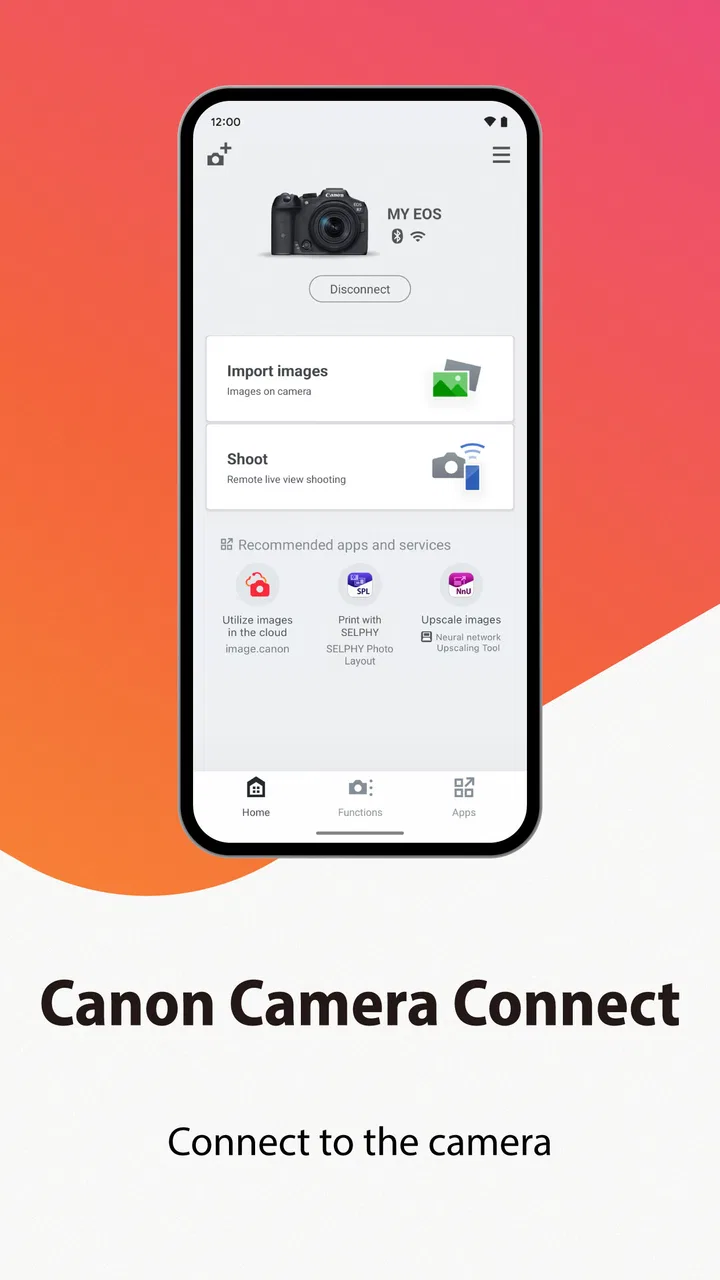
Canon Camera Connect is the kind of photography app that looks simple until you use it as part of a real camera routine. I installed it expecting a basic way to move pictures from a Canon camera to a phone, and that is still its central job, but the practical value comes from how much friction it can remove between taking a photo and actually doing something with it. Instead of waiting until I am back at a computer, I can use a Wi-Fi connection to bring selected images onto a mobile device while the moment is still fresh.
That makes it especially appealing to Canon owners who share photos quickly, keep a mobile backup of important shots, or want to review images on a larger, more convenient screen than the camera display. It is a free photography app from Canon Inc., available for an Everyone audience, and its long presence on mobile platforms shows that it is intended as a continuing companion rather than a novelty tool. The real question is not whether it is useful during the first exciting week. It is whether connecting a camera to a phone remains easy enough that I will keep doing it months later.
What the first week feels like
The first few sessions are usually the most satisfying. I take a group of photos with a compatible Canon camera, open the app, establish the wireless connection, and start choosing which images deserve space on my phone. The immediate reward is clear: I can inspect the results away from the camera, send a favorite image to someone, or prepare it for sharing without unpacking a laptop. For travel, family events, and casual outings, that change in timing matters more than any advanced editing feature.
You May Also Like

 Blood Strike: 2.5 Anniversary
Blood Strike’s Loadouts Turn Every Drop Into a Tactical Gamble
A close look at Blood Strike’s custom loadouts: how fast access to signature weapons reshapes its battle royale rhythm, rewards preparation, and narrows the gap between fights.

 Pandora - Music & Podcasts
Pandora’s Music Is Easy to Start, but Harder to Recover
Pandora’s strength is its low-effort path from a seed to a station. Its weak spot is how much confidence it asks you to place in connection, setup, and quiet recovery.

 8 Ball Pool
 Is Built on Rivalries, Rematches, and Routine
A close look at the rivalries, rematches, shared routines, and unanswered safety questions that turn a quick pool match into a persistent mobile community.

 Samsung Music
’s Quiet Strength Is Playing What You Already Own
Its reach comes less from spectacle than from dependable access to a personal library. That simplicity is both the app’s strongest retention engine and its ceiling.

 AccuWeather: Weather Radar
AccuWeather Review: A Quick, Clear Forecast for Everyday Decisions
For everyday plans, the best forecast is the one you can understand quickly. AccuWeather makes rain timing, radar, and local conditions easy to act on, with a few trade-offs.

 Hill Climb Racing
Why Hill Climb Racing Still Turns Crashes Into One More Run
A tiny car, a bumpy hill and one more upgrade: Hill Climb Racing keeps resurfacing because its simple chaos makes every near-miss feel personal.
More From Our News Desk
View All News


I also like the separation between shooting and sharing. The camera remains the tool I trust for capturing the image, while the phone becomes the place where I decide what happens next. That division is more comfortable than trying to make a camera perform every mobile task. The app does not need to replace a camera editor or a full photo-management system to be worthwhile. It earns its place by making the handoff between those two devices less awkward.
A realistic example is a weekend gathering where I photograph a few people, select only the strongest portraits, and transfer them before everyone leaves. I can then show the images on my phone, send a small set to the people involved, and leave the less successful frames on the camera. That selective workflow is better than automatically filling the phone with every shot, particularly when a camera has produced several similar compositions.
The early appeal is also strong for travelers. When I am away from my desk, a camera-to-phone connection gives me a practical way to make a photo available while the trip is still happening. A landscape taken in the morning can become part of a message or social post later that day. I do not have to treat the camera as an isolated archive until I return home.
Still, the first connection can feel less immediate than the store summary suggests. Wireless pairing is not the same as tapping a photo in the phone gallery and having it appear instantly. I need to pay attention to which device is connected, whether the camera is ready, and whether the transfer has actually finished. If I rush through those steps, the experience feels slower and more confusing than a cable or card reader.
My advice is to set up the connection before an important event rather than learning it in the middle of one. I would also do a small test transfer, confirm where the image lands on the phone, and make sure the camera and phone have enough battery. That preparation is not glamorous, but it turns the app from an emergency solution into a dependable part of a shooting routine.
Where it fits better than ordinary alternatives
The usual alternatives are a USB cable, a card reader, direct camera controls, or waiting until a computer is available. A card reader can be faster and more predictable when I am moving a large batch, and a computer remains better for sorting a serious library. Canon Camera Connect is more attractive when convenience and timing matter more than maximum throughput.
Compared with sending images through a general cloud service, the app keeps the camera at the center of the process. I do not need to first copy photos to another device or depend on a separate upload workflow. Compared with a generic wireless transfer utility, a camera-specific companion is easier to understand when I already use Canon equipment, because the app is designed around that relationship rather than around a broad range of unrelated devices.
That advantage has an important boundary. This is not the best choice for someone who wants a universal photo tool across cameras from different manufacturers. It is also not the ideal answer for a photographer who regularly transfers very large collections and values speed above mobility. In those cases, a card reader or computer workflow may be less tiring. The app is strongest in the middle ground: a modest number of selected images, moved at a useful moment.
Why it can still matter month after month
After the novelty fades, the value becomes less about discovering the connection and more about repeating a few small habits. I find the app most useful when I give it a clear role. For me, that role is selecting images for immediate use, not replacing a complete backup system. If I remember that distinction, I am less likely to expect it to organize my entire photographic life or solve every storage problem.
One lasting use is a quick review after each outing. I can transfer a handful of images, look at them on the phone, and identify which compositions are worth developing later. This creates a lightweight first pass before I sit down at a computer. It is particularly helpful when I want to remember what worked in changing light or when I need to decide whether a scene is worth revisiting.
Another useful habit is sending only finished selections instead of treating the phone as a dumping ground. I can mark a small group mentally while reviewing the camera, transfer those images, and leave the rest untouched. That approach reduces duplicate files and keeps the phone gallery from becoming a confusing mixture of near-identical frames. The app’s value increases when I use it as a filter rather than as a second memory card.
It can also support a simple sharing routine for people who photograph family occasions, small projects, or local activities. Rather than promising to send everything later, I can deliver a few good images while the event is still being discussed. That recurring convenience is more durable than the initial excitement of seeing a camera connect to a phone for the first time.
The app’s popularity reflects that practical usefulness. It has an average rating of 4.5 from around 321 thousand ratings, with over 10 million installs and roughly 6.7 thousand written reviews. Those figures do not make every connection perfect, but they do suggest that many Canon users find enough ongoing value to keep the app around. I read that as a sign of usefulness in ordinary workflows, not as proof that it replaces professional transfer tools.
Long-term value also depends on the camera being part of the user’s regular life. If I only take the camera out once or twice a year, I may forget the setup steps between uses and experience the app as a fresh technical task every time. If I shoot regularly, the same process becomes familiar. The app rewards repetition, and that is both its strength and its weakness.
Small workflow improvements that make a difference
I would create a personal rule for transfers: move only the images I intend to inspect, share, or edit on the phone. This sounds obvious, but it prevents the common mistake of turning a convenient connection into a slow, cluttered import session. A second rule is to rename or organize files later on a larger device if the images matter. The phone is excellent for immediate access, but it is not automatically a well-structured archive.
I would also avoid using the app as the only copy of an important photograph. A transferred image on a phone is convenient access, not a complete long-term backup strategy. For meaningful work, I would keep the original files in a separate, deliberate storage workflow. This distinction is one of the most important lessons for new users because wireless convenience can create a false sense that the whole photo-management problem has been solved.
For social sharing, I prefer transferring a few images first and checking them on the phone before sending them. A camera screen can hide small distractions, awkward expressions, or framing issues that are easier to notice on a mobile display. That extra review step is a quiet advantage: the app is not just moving files, it is giving me a more useful checkpoint between capture and publication.
The maintenance burden behind the convenience
Canon Camera Connect is free, but “free” does not mean maintenance-free. The recurring work is mostly behavioral rather than financial. I need to keep the camera and phone ready, remember how the wireless connection behaves, and make sure I have enough battery when I want to transfer. Those are minor obligations, yet they become noticeable when I only use the camera occasionally.
Wireless photography workflows are also more sensitive to context than a cable. If the connection fails, I may need to stop, check the camera, reopen the app, or reconnect the devices. Even when the problem is temporary, that interruption can be frustrating at a busy event. A physical card reader is less elegant, but its process is often easier to understand: insert the card, copy the files, remove the card.
The app is therefore best maintained through a simple routine. I would test it after changing phones, before a trip, or after spending a long period without using the camera. I would also avoid waiting until the battery is nearly empty. These are not special Canon tricks; they are sensible precautions for any wireless camera workflow, but they matter here because the app’s usefulness depends on the connection being available at the exact moment I want it.
Storage management is another form of maintenance. Transferring every image can quietly consume phone space, especially when I repeat the process after several outings. I prefer to review transferred photos, keep the ones that have a purpose, and periodically remove duplicates or temporary copies. The app makes access convenient, but it does not remove the need for an intentional gallery system.
There is also a compatibility consideration in the broadest sense: the experience depends on the particular Canon camera and phone combination. I would check that my equipment is supported before building an important workflow around the app. If my camera is older, my phone is heavily restricted, or my shooting routine depends on rapid bulk transfers, I would treat the app as a convenience to test rather than an automatic guarantee of a perfect setup.
What creates fatigue over time
The biggest source of fatigue is the gap between wanting one image and having to manage a device connection. When everything works, the process is pleasantly short. When it does not, the steps can feel disproportionate to the result, especially if I only need a single photo that could have been copied with a cable.
Repeatedly selecting images can also become tedious after a long shoot. The app is more comfortable for deliberate, limited transfers than for turning a camera into a high-volume mobile import source. If I regularly produce hundreds of images and need detailed sorting, ratings, folder structures, or advanced cataloging, I would rather use a computer-based workflow and bring only the final selections to the phone.
Another fatigue point is the temptation to share too quickly. Immediate access is useful, but it can encourage me to publish before I have properly checked exposure, focus, or distractions. I get better results when I use the phone as a review station, not merely as a launch button for social media. That small pause keeps the app connected to photography quality instead of making it only a transfer shortcut.
People who expect the app to work as a complete remote studio may also be disappointed. Its appeal is centered on using images from a Canon camera through Wi-Fi, not on replacing every control and management tool a photographer might want. If remote operation, deep editing, or cross-brand organization is the main goal, a different specialized solution may fit better. Canon Camera Connect makes more sense when the fundamental need is a practical bridge between Canon capture and mobile use.
Who should keep it installed?
I would recommend it to Canon owners who regularly want selected photos on a phone without waiting for a computer. It is a particularly good fit for travelers, family photographers, hobbyists who share work with friends, and anyone who wants a quick second look at images after shooting. The fact that it is free lowers the cost of trying it, while the Everyone age rating makes it straightforward for a broad audience.
I would be more cautious for professional photographers with strict delivery deadlines, large daily volumes, or a carefully managed tethered workflow. They may still appreciate the app for previews or quick sharing, but I would not make it the foundation of a demanding archive or high-speed production system without testing the exact equipment and process first.
I would also tell beginners not to judge it solely by the first connection. The useful question is, “Will I repeat this workflow?” If the answer is yes, the app can become a quiet but valuable part of using a Canon camera. If the answer is no because I prefer a computer, never share camera photos from a phone, or dislike wireless setup, installing it may add another step without changing my habits.
Canon Inc. has kept this companion available since January 5, 2015, and that longevity fits its role. It is not a flashy photography destination that needs constant attention. It is a utility whose success depends on whether it removes enough friction from a recurring task. In my experience, that is a more durable kind of usefulness than a feature that impresses me once and then disappears from my routine.
The strongest reason to keep it installed is timing. A good photo is often most useful shortly after it is taken, when the people in it are still together or the experience is still being discussed. The app makes that timing possible without forcing me to carry a laptop. The strongest reason to remove it would be a workflow built around cables, card readers, or desktop software that already feels effortless.
My long-term verdict is positive, with realistic expectations. Canon Camera Connect earns lasting space when I treat it as a selective Wi-Fi bridge, a quick review step, and a convenient way to share images from a Canon camera. It does not eliminate the need for proper storage, careful organization, or a faster bulk-transfer method. But for the everyday moments where I want a few camera photos on my phone now, the recurring convenience is real.
After the first-week novelty fades, I still find a reason to use it because it fits a repeatable habit: shoot with the camera, choose with care, transfer only what matters, and continue the rest of the work elsewhere. That focused role is exactly why I would recommend Canon Camera Connect to a Canon owner who wants mobile access without turning photography into a complicated technical project.
FAQs for Canon Camera Connect
01What is Canon Camera Connect used for?
Canon Camera Connect is an app designed to connect your Canon camera to your smartphone or tablet. It allows you to transfer photos and videos wirelessly, control your camera remotely, and adjust settings like focus and shutter speed. This app is essential for photographers who want to manage their media seamlessly on-the-go.
02Is Canon Camera Connect compatible with all Canon cameras?
Canon Camera Connect is compatible with a wide range of Canon cameras, including many DSLRs, mirrorless, and compact models. However, compatibility may vary depending on the camera's firmware and features. It's recommended to check the Canon website or user manual to ensure your specific model is supported by the app.
03How do I set up Canon Camera Connect on my device?
To set up Canon Camera Connect, first download the app from the Google Play Store or Apple App Store. Then, enable Wi-Fi on your Canon camera and connect it to your device. Open the app, follow the on-screen instructions to pair the devices, and start transferring media or controlling your camera remotely.
04Are there any limitations when using Canon Camera Connect?
While Canon Camera Connect offers many convenient features, users may experience limitations such as slower transfer speeds for large files and potential connectivity issues depending on the Wi-Fi signal strength. Additionally, some advanced camera features might not be accessible through the app, depending on the camera model.
05Is Canon Camera Connect free to use?
Yes, Canon Camera Connect is free to download and use. However, to fully utilize the app's capabilities, you need a compatible Canon camera. The app provides a cost-effective solution for photographers looking to enhance their workflow without any additional subscription fees.
Pros
- Easy connection setup with cameras.
- Real-time remote shooting capabilities.
- Direct photo transfer to mobile devices.
- User-friendly interface for quick navigation.
- Supports a wide range of Canon models.
Cons
- Limited editing features within the app.
- Occasional connectivity issues reported.
- Requires frequent app updates.
- High battery usage during remote shooting.
- Not compatible with non-Canon devices.

Canon Camera Connect
Gallery